
JDBC (Java Database Connectivity) is a Java API used to connect a Java application with a PostgreSQL Database and execute SQL statements. In the non-Maven approach, we manually download the PostgreSQL JDBC driver JAR and include it in the classpath while compiling and running the Java program. The PostgreSQL JDBC driver is commonly known as pgJDBC. It allows Java applications to communicate with PostgreSQL databases through the standard JDBC API.
Step 1: Install and Start PostgreSQL Database
Make sure PostgreSQL Database Server is installed and running.
Example connection details:
Host : localhost
Port : 5432
Database : jdbc_demo
Username : postgres
Password : password
Replace password with the actual password configured for your PostgreSQL user.
The default PostgreSQL port is:
5432
Step 2: Download the PostgreSQL JDBC Driver
Go to the official PostgreSQL JDBC driver website:
PostgreSQL JDBC Driver – Official Website
Download the PostgreSQL JDBC driver JAR.
The downloaded file will have a name similar to:
postgresql-42.x.x.jar
The exact version may differ depending on the current PostgreSQL JDBC driver release.
For this example, assume:
postgresql-42.x.x.jar
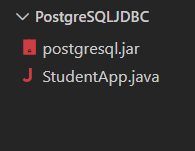
Step 3: Create the Project Folder Structure
Create the following folders:
PostgreSQLJDBC/
│
├── postgresql-42.x.x.jar
│
├── StudentApp.java
Step 4: Create the Database Table
Before running the Java program, create a database in PostgreSQL.
CREATE DATABASE jdbc_demo;
Connect to the database:
\c jdbc_demo
Create the student table:
CREATE TABLE student (
id INTEGER PRIMARY KEY,
name VARCHAR(50)
);
Insert sample data:
INSERT INTO student VALUES (1, 'Raja');
INSERT INTO student VALUES (2, 'Ram');Code language: JavaScript (javascript)Step 5: Write the JDBC Program
import java.sql.Connection;
import java.sql.DriverManager;
import java.sql.ResultSet;
import java.sql.Statement;

public class StudentApp {

    public static void main(String[] args) {

        try {

            // Load PostgreSQL JDBC Driver
            Class.forName("org.postgresql.Driver");

            // Create Connection
            Connection con = DriverManager.getConnection(
                "jdbc:postgresql://localhost:5432/jdbc_demo",
                "postgres",
                "password"
            );

            // Create Statement
            Statement st = con.createStatement();

            // Execute Query
            ResultSet rs = st.executeQuery(
                "SELECT * FROM student"
            );

            // Display Results
            while (rs.next()) {

                System.out.println(
                    rs.getInt("id") + " " +
                    rs.getString("name")
                );
            }

            // Close Resources
            rs.close();
            st.close();
            con.close();

        } catch (Exception e) {
            e.printStackTrace();
        }
    }
}
Step 6: Open Command Prompt or PowerShell
Navigate to the project folder.
For example:
cd D:\PostgreSQLJDBC
Step 7: Compile Using the Classpath
Compile the Java program:
javac -classpath “.;D:\PostgreSQLJDBC\postgresql.jar” StudentApp.java
Run the program using:
java -classpath “.;D:\PostgreSQLJDBC\postgresql.jar” StudentApp
Execution and Output:

PS D:\PostgreSQLJDBC> javac -classpath ".;D:\PostgreSQLJDBC\postgresql.jar" StudentApp.java
PS D:\PostgreSQLJDBC> java -classpath ".;D:\PostgreSQLJDBC\postgresql.jar" StudentApp
1 Raja
2 RamCode language: CSS (css)